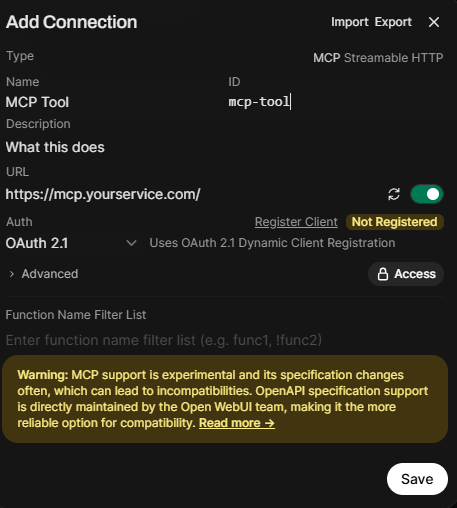
An MCP server connection in AI CTRL lets the platform connect to outside tools and data sources, like internal databases or business systems, using a shared, standard method instead of custom-built integrations for each one. MCP connections can pull real information or trigger actions in other systems. Administrators can configure MCP servers directly in the Admin Panel.
Prerequisites
Role: AI CTRL Administrator
Open WebUI Version: v0.9.6 or later
Step 1: Add the MCP Tool Server
Log in to AI CTRL and go to Admin Panel → Settings → Integrations
Click + to add a new connection
Fill in the following fields:
Field | Value |
Type | MCP Streamable HTTP |
Name | Ex: MCP Tool |
ID | Ex: mcp-tool |
Description | Describe the MCP source |
URL | |
Auth | OAuth 2.1 |
Click Register Client
This triggers Dynamic Client Registration with the MCP server — no manual credentials are required
Open WebUI registers itself and stores the client info encrypted in its database
Click Save
Step 2: User Authorization Flow
The tool uses per-user OAuth — each user must authorize their own account before using the tool.
Users authorize as follows:
Open any chat in AI CTRL
Click Integrations → Tools
Toggle MCP Tool on (or Name equivalent)
A browser redirect to the destination’s OAuth login will open
The user logs in with their account and clicks Accept
They are redirected back to AI CTRL — the tool is now active for that session
Example Configuration: