Overview
AI CTRL includes a Personally Identifiable Information (PII) filter that detects and redacts PII entered directly into Secure Chat prompts. Expedient's auditing and compliance platform, Elastic, can generate alerts whenever a redacted entry appears.
The filter supports the following PII types:
- Email addresses
- Phone numbers
- Social Security Numbers (SSNs)
- Credit card numbers
- IP addresses
How the PII Filter Works
The filter inspects text entered directly into an AI CTRL Secure Chat prompt. When it detects a supported PII type, it replaces the original value with a redacted placeholder in the format [data type]-REDACTED.
Limitations
Important: The PII filter does not scan the contents of documents added to a conversation, including files attached directly to a chat or content retrieved from a connected data source such as SharePoint. PII in those documents is not redacted and does not trigger a PII alert. Remove or redact PII that must not be exposed before making a document available to AI CTRL.
Enable the PII Filter
Enabling the filter requires administrator access. It can be applied globally or to selected models only.
- In AI CTRL Secure Chat, select your user profile in the lower-left corner.
- Select Admin Panel.
- Open Functions from the top menu.
- Locate PII Filter and confirm it is toggled on.
- Click the three-dot menu next to the PII Filter toggle.
- Choose how the filter is applied: leave Global enabled to apply it to all models, or turn Global off to configure selected models only (see Apply the Filter to Models and Custom Models, below).
Apply the Filter to Models and Custom Models
Base Models
- Open Admin Panel → Settings → Models.
- Click the pencil icon for the model to configure.
- Enable the PII Filter in the model settings.
- Click Save & Update. Repeat for each additional model that requires the filter.
Custom Models
- Open Workspace and locate the custom model to configure.
- Click the three-dot menu for the model and select Edit.
- Under Filters, select PII Filter.
- Save the changes. Repeat for each additional custom model that requires the filter.
Configuring Redaction Settings
Each supported PII type is controlled independently. Disable redaction for one type without affecting the others. For example, to stop redacting email addresses:
- Open Admin Panel → Functions → PII Filter → gear icon to open the Valves panel.
- Find Redact Email.
- Set Redact Email to a custom value and toggle it off.
- Click Save.
Advanced customization: To add redaction rules beyond the supported PII types, copy the PII Filter function and edit the copy. Don't modify the Expedient Deployed PII Filter directly: platform updates overwrite code changes made to it. Configuration and valve adjustments, by contrast, are preserved across updates.
Set Up Alerting
Import the Pre-Built Elastic PII Rule
Expedient provides a pre-built Elastic PII rule as an .ndjson file. Download the file before beginning.
- In Kibana, go to Security → Rules → Detection rules (SIEM).
- Click Import rules in the upper-right corner.
- Upload the downloaded PII Rule.ndjson file.
- After the import completes, verify that the rule is enabled.
Test the Alert
- In AI CTRL Secure Chat, enter a test prompt containing PII, for example: "Tell me about John Doe 900-12-3456".
- In Kibana, go to Security → Alerts and confirm that the PII alert appears.
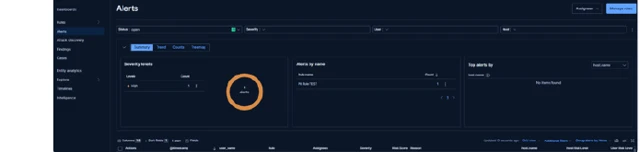
Alert behavior: A single conversation can produce multiple alerts. Later messages may carry earlier conversation history forward and generate additional alerts even when no new PII is entered, so repeated alerts from one conversation may all trace back to a single original detection. Start a new chat to avoid this.
Configure Alert Notifications
Once the PII alert is confirmed working, configure Elastic to send alert notifications to external destinations. See AI CTRL – Prompt Monitoring and Alerting for instructions on configuring connectors and alert actions.