Warp is an AI-integrated terminal that provides real-time AI assistance, command suggestions, and intelligent autocompletion directly in your command-line environment. It's designed for users who want active AI help with terminal commands and workflows. If you prefer working within Visual Studio Code with AI assistance for coding tasks, see Configuring OpenCode with Expedient AI Gateway instead.
Before You Begin
You need the following from Expedient. Refer to the API Guide (Configuring API Access) for your specific values:
- Your chat URL (public HTTPS endpoint)
- Your Expedient API key
- One or more approved model IDs
The chat URL must support the OpenAI Chat Completions API at:
POST /v1/chat/completions
Warp cannot connect to a private address, a local address, or an internal-only service.
Use only the API key Expedient provides for this connection. Do not use an OpenAI, Anthropic, Google, or other provider API key.
Configure Warp
- Open Warp.
- Open Settings.
.webp)
- Search for inference endpoint.
- Select the option to add a custom inference endpoint.
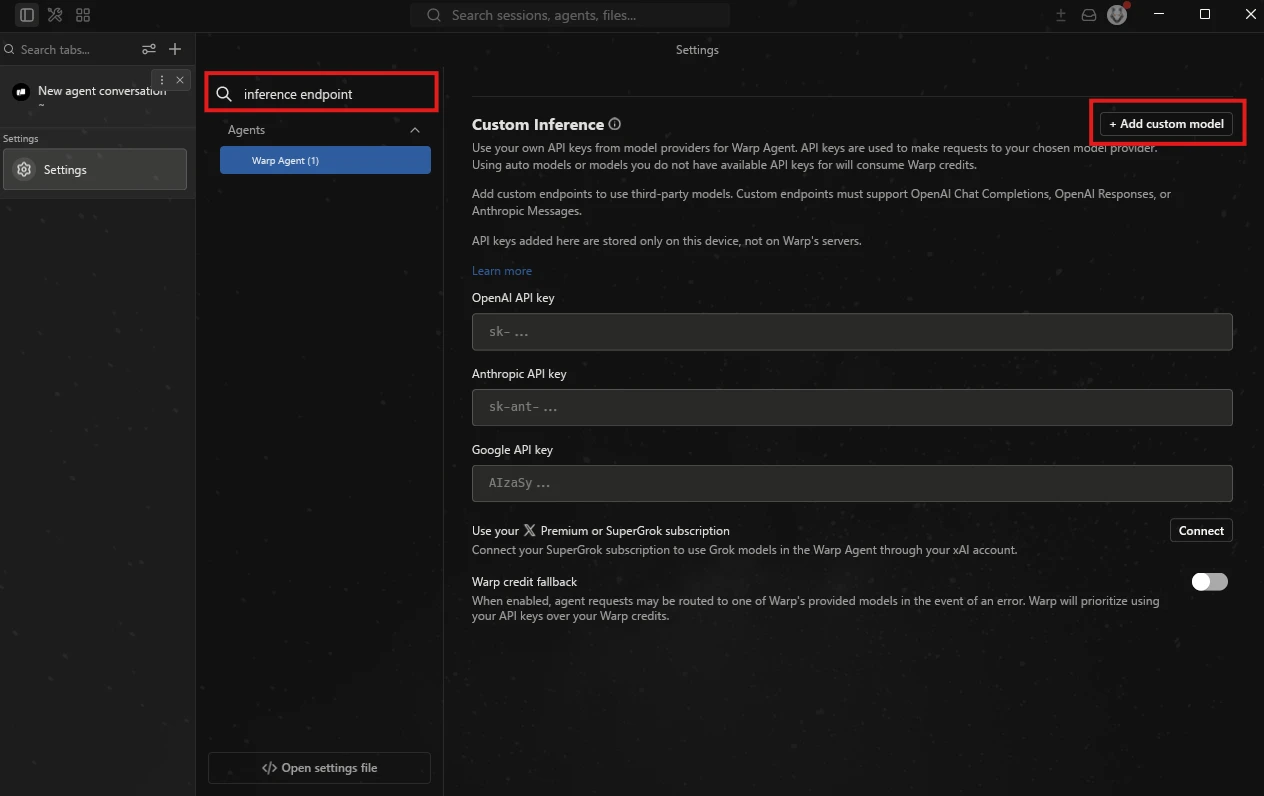
- Enter your chat URL from the Expedient API Guide.
- Enter your API key from the Expedient API Guide.
- Enter the approved model ID or IDs from Expedient. To find model names:
- Call
GET /modelson your chat URL to retrieve the list of available models, or - Sign in to your Expedient AI interface, go to Admin panel > Settings > Models, and copy the model names as listed (model names use dashes, for example
provider-model-version). See Available Models for the current list.
- Call
.webp)
- Save the configuration.
- Open the Warp model selector.
- Select the model that uses the Expedient endpoint.
Warp sends requests for the selected model to the Expedient endpoint. Warp does not use Warp AI credits for these requests.
Warp sends requests for the selected model to the Expedient endpoint. Warp does not use Warp AI credits for these requests.
Troubleshooting
The endpoint does not save or connect
Verify the chat URL against the Expedient API Guide. Confirm it's a public HTTPS endpoint that supports /v1/chat/completions, not a private, local, or internal-only address.
The model does not appear
Confirm the model ID is correct using either method in step 7 above.
The request returns an authentication error
Verify the API key against the Expedient API Guide. If the error continues, open a support ticket to have the key regenerated.