Overview
Getting better answers from AI CTRL depends on providing the right context. This guide covers the different types of documents and data you can attach to your conversations and where those sources come from.
Options for attaching data and context
The simplest method for attaching data is through the plus sign (+) in the lower left of the chat window. This menu displays almost all available options for getting data into AI CTRL. You can also attach files or context using custom models and folders.

File Upload Methods
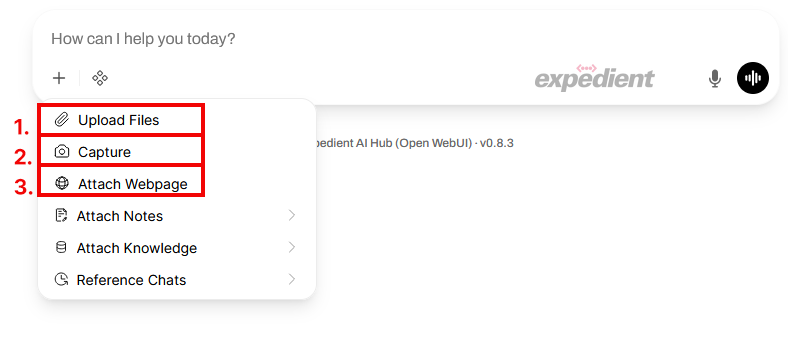
1. Upload Files
Click Upload to select one or multiple files from your device. AI CTRL supports a wide range of file types, converting all attachments into plain text that the AI receives alongside your prompt.
2. Capture Images
The Capture feature (located directly below Upload) allows you to take a picture using your device's camera. Both file upload and capture use OCR (Optical Character Recognition) to recognize text in images and pass it to the model.
3. Attach Webpage
The Attach webpage option lets you add a web page as context to your conversation.
AI CTRL Internal Sources
The last three items in the attachment menu are AI CTRL features that let you attach data already stored in the platform.
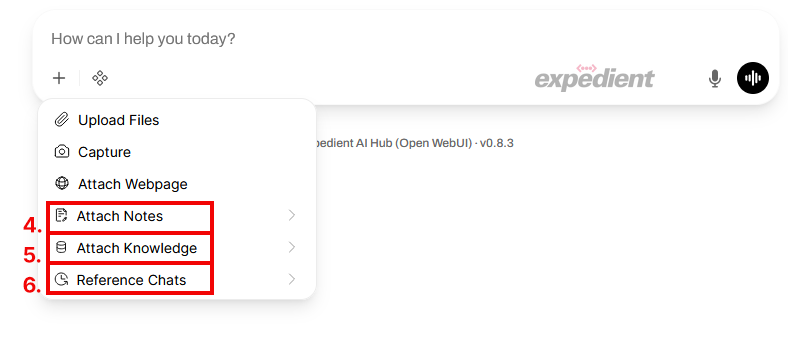
4. Notes
Add any notes from your personal notes section in AI CTRL (found as the third option down in the sidebar). This feature works well for storing raw text that you'll reference across multiple conversations.
5. Knowledge Collections
Knowledge collections serve a similar purpose to notes but are designed for files or groups of files you'll reference regularly.
Example use case: Instead of every employee uploading HR benefit guides to individual chats, your company can create a knowledge collection called "HR DATA" and share it publicly. Any employee can then add it to their chat.
How to access:
View individual files and knowledge collections from the knowledge pop-out menu
Type the pound symbol (#) in your message to search available knowledge collections
6. Reference Chats
This option allows you to add any previous conversation, along with any files attached to it, as context for your current conversation.
Integration Sources
Two additional document sources are available under the integrations button:
.png)
7. Company Documents
Found under the tools menu, this integration can point to various document repositories like SharePoint, Google Drive, or Dropbox, depending on your company's configuration.
8. Web Search
This tool pulls information from the web based on your prompt and attaches the web pages as sources.
Post Script
Almost all of these options can be enabled or disabled in individual models or deployment-wide. If you don't see options like web search or company documents, it's likely an intentional configuration choice by your company.
Different sources make sense in different situations. Start by experimenting with basic options like uploading files or using existing knowledge collections before exploring other platform features.