How to Access Virtual Colocation (VColo) - New
This document is provided to Virtual Colocation clients to give instructions for:
- Remote connection to the Virtual Colocation environment
- Connecting to the management platform: vSphere Web Client
Accessing you Virtual Colocation Environment at Expedient

- You will receive an email from OneLogin to set your account password and MFA
- These are the allowed authentication methods
- OneLogin Protect
- Authenticator
- Yubikey
- OATH Hard Token
- These are the allowed authentication methods
- Once this is complete
- Open a web browser
- Go to “https://exp-vcolo.onelogin.com/” and login
- You may use your email address or just your name to login (Your user account is set up in First_name.Last_name format)
- example
- john.smith
- john.smith@vcolo.expedient.com
- example
- You may use your email address or just your name to login (Your user account is set up in First_name.Last_name format)
- Once you are logged in click the icon labeled “vcolo”.
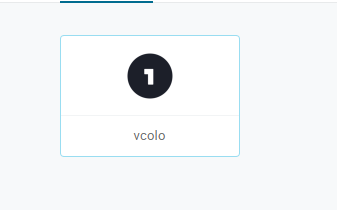
- This will open a new page to Axis Security
- Once there you will see icons based on the location of your virtual colocation environment.
- You will click one of those icons to open the vCenter web client

- Once you have the vCenter web client open
- Click Launch vSphere Client
- Here you will enter your credentials in the following formats with the same set of credentials used from onelogin.
- vcolo\john.smith
- john.smith@vcolo.expedient.com
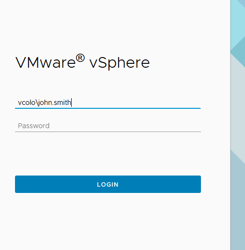
- Now you can manage your Environment
QA
I purchased a new phone before transferring my MFA
- Open a support ticket
I purchased a new phone and have access to my original Phone
- Log in to OneLogin
- Click your name in the top right corner and select Profile
- Click Security factors
- Click Add factor
What are the password requirements?
- Minimum 12 characters
- Last 5 passwords cannot be reused
- Password is good for 90 days
What happens if I don't use the login for some time?
- If you account is inactive for more than 90 it will be automatically suspended. You will have to Open a support ticket to get it reactivated
Related articles
